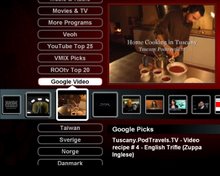
Active-TV Technology for iPhone and iPod touch

Active-TV Technology for iPhone and iPod touch
Navigate YouTube

Navigate YouTube available at iTunes App Sore

An easy to use iPhone and iPod touch App that enables both new and advanced YouTube users to get the best from YouTube.

Browse video Standard Feeds, Categories, Channels and Playlists. Then organize new videos into your own favorites and playlists. Make playlists private or public. Subscribe to other user's playlists and video collections for future viewing. Subscribe to videos matching search-words.

Look at publicly viewable favorite videos, playlists and subscriptions based on your YouTube friends, family and contacts. Send and receive video links with YouTube contacts via YouTube video messages.

Search for new videos tagged for your language or geographical region, using local keyboard. Explore for new videos via easy switching of user ID to the owner of interesting videos - then explore their world.

All actions are kept in sync with PC, Mac or Apple-TV access to YouTube. Available at Apple App Store.

active-TV technology for PC

active-TV technology for PC
Windows PC based home network

Tuesday, March 18, 2008

French language internet-video for TV browsers

The Issue: Internet video browsing and viewing at the TV is particularly useful for those trying to access video from outside their geographical location.

Solutions: Several start-ups and established media companies around the world are distributing Internet video feeds viewable on the PC. Some also offer TV-web formatted video, while almost all offer RSS feeds, which can easily be accessed via a TV-web page. This makes it possible to reach a living room TV audience with vast amounts of Internet video, or reach any TV around the home for that matter.

Behind the scene:
Active-TV technology enables low-cost internet video browsing at the TV. With active-TV technology built into the TV, or integrated into a set-top conversion boxes, it is possible to access video channels from around the world.

Some developers have used the Windows Media Center (WMC) SDK during TV-website construction. The WMC SDK extends the familiar website development software with the addition of the MediaCenter Object. The methods or procedures supported by the MediaCenter Object provide controls for playing media on a networked TV. The PC’s browser uses the extensions provided by the MediaCenter Object to correctly process TV-websites features which do not appear in PC-websites. Microsoft initially supplied the MediaCenter Object with the MCE PC. Media Mall provides an alternative yet compatible MediaCenter Object, which can be used with Windows XP or any Extended-PC using a recent version of Windows.

Below is an image of a TV-website from the BBC. The TV-website software makes use of the MediaCenter Object. The BBC site can be accessed by any active-TV technology enabled TV or STB, such as the D-Link DSM-520, via use of the Media Mall-supplied extensions to the supporting PC’s browser.


Using a different approach, a great many internet-video broadcasters are making use of RSS to distribute their video. There is growing demand for reaching a networked TV audience around the home via RSS distribution. This demand is partly satisfied by tools such a TVersity. But there is also interest in a quick way of ‘converting’ RSS feeds to a TV-web page which already contains the necessary MediaCenter Object support. The active-TV technology blogspot has been providing template code for accomplishing this.

The French language site WAT (avec TF1 networks) has a range of interesting videos grouped into themes. Members can produce their own playlists, but unfortunately (unlike YouTube) there is no RSS feed for playlists. The TV-web version of WAT along with other TV-web channels are available for download. Below is a 4x3 TV image of the WAT channel.


BBC News also produces a generic RSS video feed. Below is a 16x9 image of the TV-web channel providing access to the BBC News feeds. The BBC channel and the WAT channel are accessible on any TV.


The examples above are merely demonstrations of what is already possible. Browsing TV-web format sites, or channels, from the TV is just ‘taking off’. Active-TV technology is just one method being developed to accomplishing this; but it is in operation now, is based on open standards, and has little impact on TV cost or stability.

Feedback, corrections and comments welcome. Contact me for more information or support with active-TV technology development.
Daniel Mann

Tuesday, March 4, 2008

Social Networking and other Widgets delivered to the TV

The Issue: Widget use on the TV has become an increasingly popular topic. Constructing mini-programs in the form of “widget” chunks allows a user to select and assemble them according to individual preferences.

Solutions: There are several companies offering tools for widget construction. These tools make it easy to use the same widget on the PC desktop, website, social networking homepage or other location. Now these same widgets, when appropriate, can be used on the big TV screen by embedding them into a TV-web page.

Behind the scene: Active-TV technology delivers web 2.0 methods to the TV without requiring that a PC be embedded into the TV. This way, the TV remains an inexpensive, low maintenance, and long lived device; and by making use of a PC somewhere on the home network, widgets and other web technology are made fully available to the TV user.

In the past, widgets have been available to those TV users who connect their TV to the video-out port on their PC. But there has been little demand for a PC in the living room and hence little widget presence on the TV to date. Active-TV technology uses a PC-assisted approach to enable internet video browsing at the TV. Working with the yourminis company (recently acquired by AOL), I have enabled their widgets to appear on the TV browser and therefore on the TV. For example, see the bottom images (for weather and time) on a YouTube TV-web site (or internet video channel) below.


I have expanded the menu system to gain access to an RSS feed for widgets. Yourminis already has RSS feeds for widgets, but I had to expand these feeds to support embedding the widgets into TV-web channels. This is because there is no one currently serving TV home pages - A TV home page is a bit like Google’s a iGoogle PC home page, but for the TV. Yourminis supports embedding widgets into iGoogle, but there is no equivalent mechanism for embedding them into a TV-web page.

This problem is solved via a TV-web page having access to an RSS feed for widgets. Any personalization of the widget, such as colour, time zone or address codes, is stored in the form of cookies associated with the widget. As shown below, the menu normally used for video or photo access is also used for widget selection.


Widget information is available for preview before widget selection, as shown below.


The menu “Settings” page is used to select the widget RSS feed. In the example below, menu entry 3 is used to select yourminis widgets for screen position “widget 1”. This mechanism enables different widgets to be positioned at each widget location. Because each family member can have their own TV-web page setup, each user can have their own widget preferences, based on relevant cookies.


Navigation of the PC-web is via the TV IR remote, not the keyboard of mouse used by PC-web pages. Widgets which require keyboard or mouse interaction are not appropriate for TV-web use. Widgets also have to be larger and clearer, in case they are used by a TV with simple composite video cabling rather than high resolution video using an HDMI cable.

Video channels or individual videos can have click-to-view video advertising links; this is also true for widgets. Not released yet are widgets which interact with the menu system, such as a widget which supports “yes” or “no” voting, or other selective feedback to a video supplier or advertiser. Using the TV IR remote, a user can send a response via the TV’s internet return path.

Widgets associated with social networking interact with PC-web widgets and also support social network communication. One combination is using a laptop PC in the same room as the TV. A TV-web widget can receive messages, but without the support of a keyboard, its response is limited.

Feedback, corrections and comments welcome. Contact me for more information or support with active-TV technology development.
Daniel Mann

Tuesday, February 26, 2008

Adding a Video RSS feed or Torrent-Video to TV-web Browser

The Issue: Turning an RSS video feed, or a feed for torrent-based videos into a TV-web page for browsing at the TV has been made easy. In the interest of keeping up with the demand for new channels, the notes below provide a step-by-step implementation guide for the engineer with some JavaScript knowledge.

Solutions: The example code is available for download. When you complete a new TV-web channel and publish it, send me a link so I can help spread the word.

Behind the scene: The growing use of RSS distribution for video via torrents or streaming can be easily expanded from PC users to TV viewers. In hardware terms, what is needed is a TV that supports browsing of TV-formatted web, i.e. TV-web. An active-TV technology enabled TV or Set-Top Box is just one such device.

If you are not interested in torrent support, skip the following section and start reading from the Adding an RSS Feed section.

Configuring uTorrent Support
(Please see updated blog entry on this topic) uTorrent is a tiny bittorrent client-engine for the PC. The uTorrent TV-web page contains JavaScript which communicates with the uTorrent software running on a networked PC. If, for some reason, the TV-web page can’t communicate with the uTorrent software, then the message below appears on the TV. This usually indicates that the uTorrent engine has not been started before the TV-web page was accessed. (Before using the bittorrent TV-web page, uTorrent should be downloaded and installed on the supporting PC.)


There may be other reasons the TV-web page can’t successfully communicate with the torrent engine and require a little diagnostic work. The uTorrent software can be controlled via a browser interface. This enables remote browser access to a PC running uTorrent. The uTorrent “Preferences” must be correctly configured for this to work. The remote TV-web page assumes the “incoming connection” is set to the default port, 12060. See the setup option below.


The uTorrent Web UI interface enables remote login to the torrent PC. The remote login ID must be set to “active-TV” with password “pass”. This is the initial password. It can be changed to your own preference; however, make sure the ID on the uTorrent TV-web Settings page is set to the same value.


After a torrent is complete, uTorrent can move the downloaded files to a “completion directory”. The TV-web software does not care if this option is used, or what directory is identified, but it is best to use a directory which is accessible by one the media servers used by the system.


Media Servers currently popular with active-TV technology are provided by D-Link, TVersity, Microsoft and Media Mall. The D-Link server is included in basic install-software for the DSM-520. It enables access to a networked PC’s file system. The server software on the PC must be set to indicate what part of the file system is to be shared with the DSM-520. Use of the D-Link server does not require active-TV software to be in use by the DSM-520.


Similar to the D-Link server, the TVersity server can also work with the basic UPnP-DLNA services of the DSM-520 or other networked media players. This means the TVersity server can give a networked TV access to the PC file system without active-TV support software running on the PC or TV. Additionally, TVersity can give a basic UPnP device access to RSS feeds; But in this case the TV UI is determined by the local device and not by an associated TV-web page. However, TVersity also has an active-TV conforming TV-web page which supports access to the PC file system, but this time via a TVersity TV-web page.

The MediaMall server is another option when remotely accessing the PC file system. In this case there are only TV-web page interfaces to the PC’s file system. These are found under the “More Programs” – “My video”, “My Music” and “My Photos”.

PC media servers are programmed to scan the shared portion of the file system at regular intervals. In this way they find changes to the file system and the arrival of new files to be shared. After a torrent download has completed it is not available at the TV until after the next media server “scan”. When doing so, the uTorrent TV-web page ‘asks’ the torrent engine for the location of the completed torrent. In this way the torrented video is immediately available for viewing via access from the uTorrent TV-web page.

Take care with the access permission applied to torrented files. The DSM-520 logs into the PC just like any other PC user. If a torrent is started from a TV-web page, then downloaded files may have access restrictions imposed on other PC login IDs.

Adding an RSS Feed
The uTorrent TV-web channel, or any RSS- fed TV-web page, has a link to a setup page, partially shown below. Each of the 3 menu entries consists of a left or A-part, which generally selects the torrent or video source. The right or B-part is used for further selection from within the chosen A-part source. Those planning on extending RSS video or torrent feeds must know how to make the simple changes to the HTML file for the channel’s TV-web page.


For the menu-3 entry above, the source is “BitTorrent” and the sub selection is “TV”. The list of possible entries for A-part selection is defined by the Torrent_A array in the uTorrent_16x9.htm file. To add a new A-part entry, corresponding to a new RSS feed, a new identification-string must be included in the Torrent_A array

var Torrent_A = new Array("Democracy Now", "torrents”, "BitTorrent");

The support software calls the getMenuB() function to determine the possible B-part selection – given a chosen A-part. This function must be expanded to include any new RSS feed. The getMenuB() function need only return an array of part-B options; such as returning the array BitTorrent_B shown below.

function getMenuB( A_choice) {
if (A_choice == "BitTorrent") {
return BitTorrent_B;
}
}

var BitTorrent_B = new Array("TV", "Movies");

Once a user of the settings page completes final selection for each of the 3 menu entries, the setAB() function is called to establish the RSS URLs to be used with each menu entry. Adding a new RSS feed would require corresponding expansion of the setAB() function. The logic is quite simple, as shown below.

function setAB( column, A_choice, B_choice) {
if (A_choice == "BitTorrent"){
if(B_choice == "TV" ) {
column_url[column -1] = "http://www.bittorrent.com/search/index.rss?category=TV+Shows&filter=free&orderBy=popularity&availability=all";
}
else if(B_choice == "Movies" ) {
column_url[column -1] = "http://www.bittorrent.com/search/index.rss??category=Movies&filter=free&orderBy=popularity&availability=all";
}
}


Parsing the RSS Video Feed
Using the RSS feed’s URL, an XML documented is downloaded from the RSS server. To study an XML layout, it can be saved to the PC as an ..xml file and examined by opening with Microsoft’s IE7 browser. There are differences between the formatting of each RSS feed. But typically, each video entry in the XML table or listing looks like the example below. In this case the start of each video entry is marked with the <item> tag. The “Willie Nelson” entry below is from an RSS feed from http://www.bittorrent.com/.


- < item>
< title>Willie Nelson: Austin City Limits< /title>
< link>http://www.bittorrent.com/users/austin-city-limits-dvd/torrent/Willie_Nelson__Austin_City_Limits/92fd7a06efd9c16afaea2ff5a8a1031da1c35fad?csrc=search-rss< /link>
<>Songwriting legend (and biodiesel proponent) Willie Nelson performs live at the Austin City Limits.< /description>
< pubdate>Tue, 08 May 2007 22:17:28 -0000< /pubdate>
< comments>Seeders:0 Downloaders:0< /comments>
< enclosure url="http://torrents.bittorrent.com/austin-city-limits-dvd/92fd7a06efd9c16afaea2ff5a8a1031da1c35fad/Willie_Nelson.wmv.torrent" length="38718489" type="application/x-bittorrent">
< /item>

The TV-web page’s support code uses JavaScript to exact the relevant date for each video entry. The fillVideoArray() function is used for this task. It must be expanded to include support for passing a new RSS feed.

function fillVideoArray ( column, first_video, quantity) {
if(menuAB[column -1].A_choice == "torrents" ) {
return torrentsFillVideoArray(column, first_video, quantity);
}
else if( menuAB[column -1].A_choice =="BitTorrent") {
return bitTorrentFillVideoArray(column, first_video, quantity);
}

The fillVideoArray() function is used to produce an array of menuEntry , know as the Video array. Each entry has a title, description, rating and so on. All that is required is ‘walking’ thought each XML entry and extracting the relevant data for entry into the Video array.

function menuEntry ()
{
this.title;
this.description;
this.url;
this.rating;
this.duration;
this.date;
this.image;
};

The essential part of the parse routine is below. There are two important routines to understand: getElementsByTagName() and getAttribute(). For example, the tag-name “enclosure” contains the URL for the video. Some tag-names don’t have attributes and getElementsByTagname() is used alone to access the required Video entry – such as “title” in the example. In the case of the video URL, the URL is an attribute of the “enclosure” tag. This requires use of the getAttribute() to exact the URL data.

video_index =0;
for (var i=0; i<(xmlElement.length + skip) & video_index < entryitem =" xmlElement[i];" image = "BitTorrent.png" rating=" 0.0;" titleitem =" entryItem.getElementsByTagName(" title =" titleItem[0].text;" descriptionitem =" entryItem.getElementsByTagName(" description =" descriptionItem[0].text;" enclosureitem =" entryItem.getElementsByTagName(" duration =" Math.floor(" url = "torrent@" dateitem =" entryItem.getElementsByTagName(" date =" dateItem[0].text;" date =" date.substr(0,">

Note in the above example there is no per-video image data or rating. In such case an empty string ( “” ) or 0.0 value can be used for the corresponding Video entry, or some more useful value can be created or inserted. The “duration” entry has been filled with the size of the torrent file, this entry normally contains a string indicating the run-time of the video. It is important to note that in this bittorrent example the video URL has the string “torrent@” prepended. This is only required for torrent videos. When parsing an RSS feed for normally streamed video, which are to be viewed immediately, “torent@” should not be added to the video URL.


The TV-web is used to display the Video array information for each video menu entry. The image above shows the information extracted for the “Willie Nelson” example.

With menu settings: “torrent” – “active torrents”, information about the progression of video torrents is reported. This is only provided for torrents containing video or other media file. It is possible to torrent, say, an .exe file; but the torrent progress would not be reported, as the file is not for TV access. So, perhaps RSS filtering above should exclude .exe files.


As this proof-of-concept is further developed, more features and support for additional torrent engines will likely be added. For now, however, it has been proven that torrents listings can be viewed, selected, download and watched -- all from the TV, a welcome step towards making the pleasures and ease of 'catch-up TV' viewing, heretofore only available on the PC, now available directly on the TV. The steps outlined above, show how to add addition RSS video sources to a TV’s channel listings.

Feedback, corrections and comments welcome. Contact me for more information or support with active-TV technology development.
Daniel Mann


Tuesday, February 5, 2008

How many TVs in a home network can simultaneously surf internet video

The Issue: Internet video viewing is popular with PC users. As active-TV technology brings viewing to the livening room TV, what limitations may be imposed on simultaneous video access around the home?

Solutions: Active-TV technology pushes the software support burden onto a networked PC, so as to mostly eliminate the cost and maintenance burden at each TV. Synchromesh Computing has benchmarked the load the TVs place on the supporting PC. Processing TV-web requires the support of complex software, but the processor burden is typical very small.

Behind the scene: As TV System-on-Chip (Soc) devices offer increasing support for advanced video codecs, it is clear that the most restrictive component of an active-TV technology home-network is the broadband service to the home. Currently, the PC can be used to transcode non-native video into a format decodable at the TV. Support for this feature appears to be the biggest processor burden placed on the supporting PC.

Synchromesh Computing used a system of up to 5 D-Link DSM-520 Digital Media Adapters (DMA). They were connected by wire to a home router. The home PC or laptop was also connected to the router, but by either a wire or 802.11g wireless connection. Each of the active-TV enabled TVs was simultaneously viewing YouTube video. Synchromesh told me that they did not think wirelessly connecting all of the DSM-520s would effect YouTube viewing at the TV. They did not test a completely wireless network as their primary interest was in determining the load on the home PC or laptop rather than the home network.

Three different PC systems were used for the test (see table below). These supported greatly different computational power levels.


The test was to determine if the PC had the computational power to support all of the 5 TVs, or some reduced number. Technically it is possible to support more than 5 TVs, but an upper limit of 5 seems adequate for home use.

The chart below shows the number of active-TV technology clients (D-link DSM-520) supported by a PC using Windows XP, while the PC assisting the TVs is also being used simultaneously to surf the web and view YouTube video.


( © Synchromesh Computing )

The chart below shows the number of active-TV technology clients (D-link DSM-520) supported by a PC using Windows Vista, while the PC is assisting the TVs and is simultaneously being used to surf the web and view YouTube video.


( © Synchromesh Computing )

The results indicate that a dual-core PC or Laptop computer can support 5 TVs while still being used to browse the web. A single-core low-end PC restricts the number of TVs supported to 1 or 2, depending on the PC operating system on type of home network used.

The use of YouTube video is interesting as it is currently available in Adobe Flash video (FLV) or H.264. Neither of these are natively decoded by the DSM-520. In the benchmark case, the video was accessed in FLV and transcoded to MPEG2. The use of MPEG2 results in relatively high bandwidth consumption but good video quality.

When the internet video is available such that no video transcode is required, then the burden on the PC is obviously dramatically reduced or eliminated in terms of the video trancode load imposed. This will increasingly be the case, but for now, it is good that the PC can ensure that the TV user is not restricted.

But what if the PC user is placing a heavy load of the PC’s CPU, such as running a complex game. How does this limit the TV’s ability to access YouTube? The chart below shows the number of active-TV technology clients (D-link DSM-520) supported by a PC using Windows XP, while the PC assisting the TVs is simultaneously used to play World of Warcraft – a 3D PC game.


( © Synchromesh Computing )

The results indicate that when playing a complex game, a low-end dual-core PC is only able to “spare” enough “CPU-cycles” to support 3 or 4 TVs requiring YouTube-quality video transcode. As with the lightly loaded PC tests, a high-end dual core PC is able to support 5 TVs -- even when it is heavily loaded with other activity.

The results are interesting to the engineer. But in practice, unless you have a relatively old or slow PC, the biggest restriction imposed on multiple TV access to internet video is the bandwidth available through the home connection. “Better quality” internet video can use more than 0.7MBps of bandwidth. Supporting 5 channels might require 3.5MBps bandwidth; which is certainly more bandwidth than currently available to many home users in the US. It would be best to first test your ISP bandwidth to determine if it has the capacity to support so much TV-web browsing.

Feedback, corrections and comments welcome. Contact me for more information or support with active-TV technology development.
Daniel Mann


Monday, January 28, 2008

Complete torrent control from living room TV

The Issue: Outspoken industry experts report that internet-delivered video to the living room TV is in desperate need of platforms which are open, low-cost and conform to a standard. Are such platforms technically possible? And who are the winners and losers if such an objective was achieved?

Solutions: Dominance in the delivery of video and advertising to a living room TV audience is such a great price, that many are reluctant to collaborate for fear of reducing their share of such a prize. As well as an uncooperative business environment, there are software-complexities and hardware-cost obstacles that prevent the emergence of open-platform solutions.

Behind the scene: The PC, with its browser support, has set a standard for open PC-web development. Using networked PC-assistance, the existing and open software infrastructure can continue to support open access to TV-web. Via technologies such as active-TV, a TV can be free to openly browse TV-websites, including those with supporting the latest Web 2.0 features. This is achieved while adding minimal cost to the TV and without burdening it with maintenance or feature-longevity complexities. Moreover, this approach produces a much more interesting experience for users than more expensive and un-assisted TVs, which have less Web 2.0 support and are tied to business deals involving limited video portal access.

An industry problem ?
No doubt you have been following recent announcements from Samsung, Panasonic, Sharp,and likely others, that they will add access to internet video on new networked TVs – sometime in the first half of 2008. Many reporters are now saying 2008 will be the year in which Internet-delivered video reaches a large living room TV audience.

The technical approach by and large involves integrating support software to enable the TV to access a video supplier’s portal or tailored RSS feeds. This portal styled approach, however, does not enable the TV to access any video feed or even easily keep pace with the rapid changes in web technology. Maybe these TV suppliers are hoping customers will just buy another TV when they all too quickly discover that the features supported by their TV's integrated software are increasingly inferior to next month’s model...

The problem of building a STB or TV capable of dealing with all Internet video sources and variants was recently discussed by Amino’s marketing VP (the number one supplier in IPTV boxes): “... Simply offering our boxes in retail wouldn't work: there's just not enough consistency and standardization out there to make doing that a proposition that would be satisfying to consumers”. Note that the lack of standardization is not a problem for the PC, which has the support software to deal with it; it is a problem for a low-cost, low-maintenance and longer-life TV.

Jeremy Allaire and Adam Berrey of Brightcove, have published an open letter to the CE industry requesting a joint effort to bring standards to internet TV appliances. The letter states: “An even greater limitation than complexity is the fact that today's strategies are fundamentally closed”. They go on to say:

Each device has a different set of standards and requirements for using online video content, so there is no consistency of formats and user experience.
Most devices don't provide open access to any video service that is hosted on the open Web, and instead require direct deals and relationships with the device vendor.
Related to the above, none of these devices offer a simple and open development model for web service developers to create and deliver custom content and services.

Unlike the PC-based web and the mobile-web, which are both built on open standards, the consumer electronics ecosystem offers no consistent set of open standards for online media to reach televisions. [end quote]

The letter proposes some very good solutions, such as standardizing on an XML format for video RSS feeds. But without a dominant TV hardware platform leading the way via an all-pervasive application software standard, there is no coordinated effort to date to build a TV software infrastructure conforming to a single standard.

Consequently, likely accompanying each of the new networked TVs or networked Set-Top Boxes (STB) is a Software Development Kit (SDK), which application developers would have to use to build video portal interfaces or screen widgets. Given the endless possibilities for variants, this is likely to add 'SDK fatigue' to the growing DMA fatigue.

CE developers don’t feel equipped to take on an effort to drive some kind of Web 2.0 technology standard for the TV. The task is difficult, to be sure. Comparable projects from Microsoft, Intel Viiv and AMD Live!, have all met with failure. There are also large differences in the capabilities of TV Systems-on-a-Chip (SoC) used in the CE industry. It would certainly be possible to build a standard around something like Apple TV, given that it is basically a headless PC without the problems of the Windows operating system. However, a $15 TV SoC cannot replicate the software support of an Apple TV. If this were possible, the market would be awash with $15 integrated-PC browser systems. I could suggest that the home PC user would greatly appreciate such a device, but the PC industry is not yet capable not interested in supplying such a solution.

Maybe the networked TV buyer must factor in a low-end, PC-like cost adder to their TV purchase or be content with the meager video offerings and low-end features available in first-generation networked TVs? Buyer’s enthusiasm for adding, say, $250 to a TV appears weak. Hence, the recent Apple TV price reduction from $299 to $230. Sharp has suggested it will charge $200 more for its networked TV models, which have limited portal support. Maybe Apple will offer Apple TV integrated into a TV, once it clears unsold Apple TVs. This may motivate an industry response, but it is not the establishment of a standard...

The Brigtcove letter states that “closed” is a greater limitation than “complexity”. I think “complexity” refers to system configuration and maintenance rather than cost. I am not sure I agree with this part of an otherwise excellent letter. The PC-in the living room was an open solution, but more significant to its downfall than 'too-much-noise' or 'too-much-cost', was 'too-much-maintenance support'!

Web 2.0 technology for PC-web continues to develop rapidly, with new 'must-have' features continually emerging. We should expect web 2.0 support for the TV to show a similar development pattern. It is hard enough, maybe impossible. for the CE industry to standardize on a reduced set of Web 2.0 features, all supported by a $15 TV SoC today; it would be even more difficult to keep pace with PC-web 2.0 developments, without the added hassle of TV maintenance and compatibility problems.

I think an unalterable requirement for TV buyers is reliability and 'zero TV maintenance'. New TV buyers might be prepared to reconfigure their file sever or home network router, once; but they are not willing to maintain TV plug-ins and drivers. It would remind them too much of their Windows PC. They may have accepted the maintenance cost of PC-web access, but they don’t want to double this burden by adding similar PC-like TV maintenance.

I submit that active-TV technology frees a TV from dealing with the lack of simple Internet-video and Web 2.0 standards. Via PC-assistance, a networked TV presents web pages formatted for the TV. These TV-web pages (or channels) are easy to build and can come from a great many sources. The system is flexible, easily upgradeable, maintains TV reliability, is universally accessible and keeps the TV-side costs down. By maintaining a PC’s access to TV-web, a networked TV user can utilize this cost-effective resource to support browsing of TV-web.

A networked TV connects to the internet via a home router or gateway. A home PC also connects to the internet via the same router. Active-TV technology requires a PC be left in standby mode, in case it receives a request from the TV, via the home router, for temporary assistance in processing Web 2.0 software. The energy costs of keeping the PC in standby mode are less than the energy costs of a large plasma or LCD TV. Anyway, the PC may be simultaneously and invisibly used by another person who is also accessing TV-web or PC-web pages or channels.

Internet Video Broadcaster support
DivX officially launched its active-TV technology-styled “DivX-Connected" DMA at CES 2008, having first seen demand for this product in Europe. With the goal of continuing to expanding support beyond Stage6, DivX announced that they will add video from the popular Internet Broadcaster Veoh. Not surprisingly, there is already an active-TV technology supported TV-web channel for Veoh (see below).

Clearly, Veoh is showing enthusiasm for reaching the living room TV on platforms other than the living room PC. However, if TV manufacturers continue along a 'please-use-my-SDK path', then a video broadcaster’s ability to reach a living room audience will be constrained. This may result in a shake-out of internet video broadcasters.


As internet video providers are under pressure to make money from PC-web or TV access, the greater freedom of PC-web access may not be easily translated to TV access. For example, YouTube may allow free access to its PC-website, but it may become more restrictive in granting a standalone-TV access to its video. YouTube and other Internet broadcasters may prefer a TV portal to an open TV-website. This would enable them to better control deals with TV builders and advertisers, and monetize their video on TV. If this is the case, the industry would not be driven in the 'open' direction proposed in the Brightcove letter; instead, the establishment of open TV-web browsing -- similar to PC-web browsing -- using technology such as active-TV, would be delayed.

It is easy to build a TV-website or channel using familiar PC-web browser technology: HTML, Javascript and Flash. Below is an example: a TV image of a TV-web channel for videos available through Internet video broadcaster, ROO. The video menu shows three options: “World News”, “Travel Europe” and “Entertainment News”. These are selected from the ROO “setting”s page, which offers about 170 menu choices. The video, like Veoh video, is of a much higher visual quality than YouTube video.


The advocates of a standalone TV approach, that is a TV operating without any PC assistance, do not expect the TV to replace all PC-web functions. They don’t expect triple-tap entry via the TV remote to be used to search for and organize all video. Everyone agrees that this is still a job for the PC. This is similar to managing an Apple iPod from its iTunes PC or Mac interface.

Networked TVs will also have to solve the problem of filtering video for ‘family’ viewing. Many parents will not allow their kids to use a networked TV to freely search and access video from YouTube. It is easier to define video search criteria, manage video playlists, and control video filtering from the PC than a simpler networked TV. This better enables the user to enjoy the relevant video at the TV without continual interruption and excessive TV interactivity.

I think portal restrictions, lack of open internet-video access, and failure to keep up with the latest Web 2.0 technology experienced on the PC, will prevent first generation stand-alone networked TVs from widespread adoption.

TV access to shared photos
Several of the networked TV announcements indicated they would have support for internet photo sharing. One such popular site is Google’s Picasa. A prototype TV-web channel for Picasa has already been built. There is a menu button which enables photos to be viewed full-screen in a slideshow sequence. The familiarity and productivity of TV-web or TV-web development tools greatly simplify this kind of development. It will be hard to for an array of TV SDK users to keep pace with TV-web development.


For those less familiar with Picasa, the PC-website below is used to upload photos for sharing with other web users.


Using the menu-settings page of the Picasa TV-web channel (see below), a photo album can be selected. A user must first enter a Picasa User ID (this is stored for future use). Photos can be viewed individually, or as a slide show. This is a great way for a PC user to “send” photos for someone else to view on their internet connected TV.


Torrenting from the TV
Another industry leader, the BBC’s Ashley Highfield, has also been blogging about the lack of industry standards. Like Brightcove he is hoping for “a simple, elegant, cheap, open standards box, that easily allows streamed or downloaded, free, rented, or bought programmes”. Importantly, the “cheap” requirement has not been overlooked.

Maybe the networked TV user does not need the Web 2.0 features of PC-web. If this is the case, then when the business conflicts are finally resolved, the industry can provide a cheap solution. Maybe TV users will step-up to paying the additional cost of Apple TV-like hardware. However, there has been strong evidence indicating that they are not yet ready for this expense. If Web 2.0 is required at the TV, then the problems of unwanted hardware cost, too much TV maintenance and networked-TV feature-longevity, are all resolved by using a PC-assisted approach.


The Highfield blog goes on to say, “mentioning this to a very tech savvy colleague this morning, he replied that he downloaded programmes through BBC iPlayer [on a PC], stripped the DRM (hence his anonymity!), re-encoded the file, burned it to DVD from his PC, then took it to his DVD player connected to his TV in the lounge. Hardly a solution for my mum either.”

It is quite easy for active-TV technology to greatly simply the practical steps being taken by Ashley’s “tech savvy colleague”. No doubt there are a great many PC-web users who torrent (peer-to-peer transfer) video to their home PC. This video is typically provided in MPEG4 variants such as DivX. If the user does not own a MPEG-4 enabled DVD player, they mostly transcode the video to MPEG-2 format for playing on a ‘normal’ DVD player. The whole process of going to the PC to initiate a torrent (P2P), transcoding the video, writing a disc and 'sneaker-netting' it to the living room DVD player can be replaced by a simple TV-web site which supports torrents.

I have built support for the popular uTorrent engine into a demonstration TV-web channel. Now using only the IR remote of an active-TV enabled TV or STB, such as the D-Link DSM520, I can control all the necessary steps from the TV, without ever visiting the PC.

For demonstration, I added support for video torrents offered by http://www.democracynow.org/ and http://www.bittorrent.com/. The torrents are provided by RSS feeds. BitTorrent has feeds for “TV” or “Movies”. This explains the “TV” entry in the menu entry below. Selecting the “Amy Goodman” menu entry, enables selection of “Democracy Now” news and analysis programs.


By simply clicking on the “Willie Nelson” menu entry at the TV, the networked PC-assisted TV will start the associated torrent.


Using the “active torrents” menu entry, it is possible to manage torrents and monitor their progress. Not shown are additional menu entries for pausing, restarting and removing completed torrents. As torrents progress, their percentage-completion is reported. Below is a snap-shot of a torrent for the 'Democracy Now' show from January 23. When “100% download'” is reached, the show is available for viewing. The “share ratio” refers to the torrents upload-to-download ration. Naturally, it is possible to have several torrents running at the same time and at different stages of completion.


So there we have complete torrent access by a living room TV, without ever visiting the PC or having a PC attached to the TV. There is no need to write an intermediate DVD. This is accomplished without adding complexity and cost to the TV as it relies on networked PC assistance. Conveniently, if a torrent is alternatively started from the PC via PC-web selection, it is still reported and monitored on the TV-web page. Interestingly, the '”Democracy Now” video is in H.264. The D-link DSM-520 supports DivX but does not natively support H.264; however, the PC invisibly transcodes the video before sending it to the TV for viewing. Another benefit of PC-assist,

Feedback, corrections and comments welcome. Contact me for more information or support with active-TV technology development.
Daniel Mann

Wednesday, January 2, 2008

Getting the most from YouTube video at the living room TV

The Issue: The YouTube PC-web site is a very popular video share site. In its present state, however, given that it is formatted for viewing on the PC, YouTube videos cannot be conveniently accessed from a living room TV.

Solutions: Active-TV technology overcomes this limitation and enables YouTube video to be easily viewed on any TV around the home. YouTube video is accessed via TV-web format rather than a PC-web formatted page.

Behind the scene: The TV-web site described below does not replicate all of the search features of the YouTube PC-web site; rather, the two sites work in tandem: The PC-web site features are used to ‘prepare’ video channels, which are then immediately available for easy viewing at the TV.

Below is an image of a TV-web site for YouTube video. The menu in the upper-right enables selection of 1-of-3 video channels, either pre-existing or easily created by individual users of YouTube. Currently, the “Flintstones” channel is selected. The second menu, in the lower portion of the screen image, is used to select individual videos from the selected channel.


The above TV-web site does not support searching for videos or arranging them into channels. No big deal, as this is easily done on the existing YouTube PC-web site. Consequently, the PC-web site and the TV-web site work together to give complete control over viewing video on the living room TV. The TV-web site has the advantage of being organized around the “lean-back experience” and group-viewing. Additionally, it is easy to simultaneously use a notebook computer in the living room to organize YouTube videos into channels, and then immediately view them on a corresponding TV-web site.

There is an added security advantage when eliminating support for random video searches at the TV-web channel: parents can pre-approve videos or video sources for all channels made available to children at the TV.

Before looking at how TV-web channels are selected, let’s first review some of the basics of YouTube access. YouTube members can upload videos for sharing and future review. Each member can arrange their uploaded videos into a YouTube Channel, or several Channels. In fact, a Channel can be constructed from other users’ uploaded videos as well. A members’ Channel is available for other YouTube users to view.

After logging into the YouTube PC-web site, a user can select the corresponding tab to either Videos or Channels. It is easy to search for new videos by selecting the “Videos” tab [shown below] and entering a search-string in the Search Box.

When a new video is found, it can be played in the familiar YouTube PC-web player. At the bottom of the player [shown below] are options to add the video to “Favorites” or to a “Playlists”. Unlike video favorites, the use of playlists enables saved videos to be grouped appropriately.


When a playlist is initially created (via the “[New Playlist]” option when using “Add to Playlists”) a title for the playlist must be entered. Also, the playlist must be marked “Public” or “Private” [as shown below]. If a playlist is Public, then other YouTube members can access the playlist without having to enter a password for the member who created the playlist.


An easy way of accessing Favorites and Playlists is by clicking on the hyper-linked user-ID at the top of the page. When I click on “daniel78746” at the top of my YouTube page and then select the “Playlists” tab, I can access all of my saved playlists.


By using the “Edit Playlists” button, I can make changes to my playlists; such as changing the order in which each video plays. There are other ways of navigating to the same “My Account / Playlists” page.


Remember, it was stated earlier that each member can have YouTube Channels. The “Channel” tab at the top of the initial YouTube page is used to list channels. After selecting a channel, such as the 'National Geographic' one, it is possible to subscribe to the channel. As shown below, there are currently only 26,918 subscribers to the National Geographic, a fraction of total YouTube viewership. [The low numbers of channel subscribers makes me think that YouTube channel subscription is an under used resource by its members.]


When a video is viewed in the player window, there is often an option to the right of the player to 'Subscribe' to the channel in which the video is contained. There are different ways to review the channels currently subscribed to, i.e. “My Subscriptions”. First, via the “Home” tab on the initial page, followed by the “My Subscriptions” link; Secondly, via the user-ID at the top of the initial page followed by the “Subscriptions” link. Once there, there is a button to “Edit Subscriptions”.


Note above, the box to the right which enables subscription to “Tags”. This is a bit like creating a channel from video search criteria. For this example, I have entered “wallace and gromit”. After creating this subscription, I have a collection of relevant videos, which YouTube gives the ‘channel name’ “gromit wallace”. This alphabetical reordering can be prevented by literally using a quote symbol ( “ ) in the 'Subscribe to Tags' box, but the “and” will still ‘disappear’.

Returning to the TV-web page at the start of this article, the menu has a “Settings” option and when this is clicked using the TV’s IR remote, the “settings page” shown below appears.


Each of the 3 video menus has separate controls which are used to select the video included in the channel. In the example above, menu-1 is set to Videos -> Flintstones. Menu-3 is set to Playlists -> Old Grey. Each menu setting requires a first and second choice. The left, or first choice, can be varied between: Videos, Favorites, Playlists, Channels, and Subscriptions. The right, or second choice, is used to further narrow the selection.

YouTube also provides several video groupings know as Standard Feeds and Categories, such as: Most Viewed, Top Rated, Featured, Sports… These are made available under the Videos selection. Note, merely for convenience and demonstration, I have added some more video groupings, such as the Flintstones.

Under the Channel selection, there are several popular YouTube channels, such as National Geographic, NHLVideo and Motorstelevision. These channels are available without requiring subscription to the channel.

Remember the above example of subscribing to Video Tags “wallace and gromit”? Well, the ‘channel’ created now appears under the Subscriptions selection.


Selecting Subscriptions -> gromit-wallace for menu-2, as shown above, results in a listing of relevant videos appearing in the menu - after using the TV IR remote and the Return-To-Video-Menu button. Parents should note that using “Subscribe to Tags” does not always ensure appropriate video for a younger audience. (For example, the term 'Bambi' could return videos relating either to the Disney children's story or to an 'adult' entertainer...) It is more secure to use tag-searching to create a list which must be reviewed and further reduced to a Playlist. For some audiences it may be safe to rely on videos from certain channel sources, such as National Geographic.


Selecting Subscriptions, Playlists and Favorites requires the use of a YouTube member ID. The ID in use is shown at the bottom of the settings page [shown earlier]. There is a box for entering a new ID. Using a TV IR remote triple-tap sequence, the ID is entered. It is stored along with all the chosen settings in the form of TV-web cookies. This means, after turning on the TV and returning to the YouTube TV-web page, the previous channel settings are completely restored.

The user ID is sent to the YouTube server to enquire about the member's P and Subscriptions. No password is used and consequently only video items market 'Public' can be viewed. By entering another ID, say, someone else's member ID, it is possible to view their Favorites and Public Playlists.

Because a TV may be shared by several people and each may have their own channel preferences and user ID, the top-level menu can be used to select a TV web site from several YouTube TV-web icons; each leads to its own YouTube TV-web site as set up by an individual user. This reduces or almost eliminates the need for triple-tap at the TV, and allows different users to quickly switch between their channel preferences.


Note that the “YouTube Family” TV-web site only supports Favorites, Playlists and Subscriptions. Eliminating the Videos and Channel setting options, means a parent has greater control over what can be seen on the TV. Installing only the associated YouTube_family.mcl file ensure that the other YouTube TV-web channels do not reach the TV.

Feedback, corrections and comments welcome. Contact me for more information or support with active-TV technology development.
Daniel Mann